Showing posts with label iPad. Show all posts

Thursday, February 12, 2015

Photo Story/ Book Publishing iPad Apps

Looking for a fun way for your students to publish a book or presentation? Here are two apps that will help!


A new chapter in photo books. Shutterfly Photo Story for iPad is an easy and fun app that lets you make a photo book you can hold, hear and share. Tell your story with photos, Doodles, text and audio, and easily order your book or share a digital version. From Shutterfly, the leader in photo books. 


Adobe Voice

Voice helps you create stunning animated videos in minutes. No filming — just talk to tell your story. Pick from over 25,000 beautiful iconic images to show your ideas and Voice automatically adds cinematic motion and a soundtrack. Persuade, inform and inspire anyone online. Make an impact.

Tuesday, September 23, 2014

iOS8

Last week Apple came out with a new operating system, iOS8.  If your family has multiple apple devices, installing this upgrade comes with many features to bring your family closer together and to help parents control purchases.  Start by upgrading your operating system (Settings>General>Software Update).  After the upgrade you turn on Family Sharing  up to 6 family members can enjoy the following features:

  • Access each other’s apps, music, movies, tv shows and books
  • Use the Shared Family Album and instantly update all family devices with the latest pictures and videos
  • Create a Shared Family Calendar where everyone can add events to one calendar and reminders can be sent out to multiple devices.
  • Pay for family purchases with a single credit card.
  • Enable “Ask to Buy” to require children to get permission before making iTunes, iBooks, and App Store purchases.
  • Make Apple IDs for children under 13 years old so they can personally be part of the “Ask To Buy” feature.

Thursday, November 7, 2013

iOS 7

Now that you've got the go ahead to update your iPad to ios7, here are a few tips...

  1. Log in to your laptop as yourself.
  2. Open the iTunes program on your computer.
    1. If a message appears declaring that there is a newer version of iTunes, download and install the new version.
    2. You may need to put your apple id/password in.
    3. Wait until the  update is downloaded and installed.
  3. Plug your iPad into your computer.
  4. A message will appear declaring that there is an ios software update available.Click download and install.
  5. If a message appears about there being content on your iPad that hasn’t been transferred, ignore it and click continue.
  6. Click Continue and Agree.

Your iPad will begin to back up and update.  This may take a while.


Here's how to respond on each page of the setup. (Page order may be different than listed below or you may not see every page depending on how your iPad is set up.)


  • Update Complete -Click Continue
  • WiFi- Choose RTSD26-D. ( If asked, use your school username/password)
  • Location Services - Click Enable Location Services
  • Apple ID - Click Sign in with Your Apple ID and then enter your apple id and password
  • Terms and Conditions - Click Agree (2ce)
  • iCloud- Click Use iCloud
  • Find My iPad- Click Use Find My iPad
  • iMessage and FaceTime- Colick Continue/Next
  • iCloud Keychain- Click Set up Later
  • Create a 4 digit passcode- type in a passcode
  • Click Get Started


One last step...
Go to the App Store on your iPad
Click Updates
Click update all


Tuesday, August 27, 2013

After you change your password...

Every time you change your network password, you will have to update a few settings on your mobile devices.  Check your iPad, iPod Touch or mini for an internet connection by looking for this WiFi symbol at the top of your screen.


If you don't see the WiFi symbol, you will need to reconnect your device to the network.

Go to Settings>WiFi.
Choose the WiFi connection you want to use.
       - RTSD employees choose RTSD26-D
Enter your username/password.
Accept any certifications.


Trouble Shooting... If this doesn't work the first time. Sometimes I  reset my iPad by turning off/on the WiFi for a second

 or choosing the WiFi connection I want and clicking Forget This Network.


Friday, April 26, 2013

Doodle Buddy


Doodle Buddy is a fun drawing app, similar to Kid Pix. It has drawing tools, text tools, shape tools and stamps!
Have your students...
  • create patterns
  • illustrate math problems
  • draw math concepts
  • label shapes
  • respond to comprehension questions
  • illustrate cause and effect
  • illustrate vocabulary words
  • use it as a white board during a lesson

Wednesday, April 24, 2013

iPad Listening Center

Turn your iPad into a listening center!  With headphone splitters more than one child can listen to the story at once!  

The iBooks store has a section on the bottom of the page called "Read Aloud Books for Kids."  Some books are free or you can use an iTunes card to purchase books!

Wednesday, April 17, 2013

Stop Motion!

Using the iPad for stop motion animation is a great way for students to showcase their knowledge.  Not only does it require an understanding of the concept assigned, it also integrates higher order thinking skills in the planning and execution.


Animation projects follow five (5) basic steps:
  1. Develop an idea
  2. Create your characters
  3. Build your background
  4. Shoot the shots
  5. Make a movie (compile and edit)


    I used the free,  iMotion HD app to create this short video*.  (Please excuse the quality, it is just a sample) My next step
     would be to add narration, a title and credits.  This app has a user-friendly interface and exports videos to my camera roll.


Here are just a few curriculum ideas.

  • Create a visual story without words
  • Retell a scene from a book
  • Recreate a historical event
  • Document the life cycle of an animal
  • Explain how plants grow
  • Sequence a science experiment or transformation (water-liquid-gas)
  • Explain how to solve a math problem


*No animals were harmed during the production of this film.


Friday, April 12, 2013

Explain Everything!


My newest favorite app!  Explain Everything ($2.99) let's you make a movie that can include photographs, videos and annotations!  Check out this quick video I made explaining how to get pictures on and off your iPhone or iPad if you use a PC.


Explain Everything is easy to use and would be great as a publishing tool in any subject.    Teachers could even use it to explain assignments to students or explain how to use classroom websites to parents!

It takes only a minute to get started... Watch this Getting Started Video!

They even have video guides and  PDF instructions.

Tuesday, April 2, 2013

netTrekker, Skitch & the iPad

Here's a quick and easy lesson using my favorite kid-friendly search engine, netTrekker, and an awesome app called Skitch.

netTrekker has a pretty great image search feature that always finds age-appropriate pictures for students.  Use neTrekker to find an image and then use Skitch to label, add shapes or add text to the image.  Skitch is easy to use!


Here are some ideas lesson ...
  • Label the frog's life cycle
  • Label national parks on a map
  • add facts about lions to a picture
  • Explain the steps in making a peanut butter sandwich
  • Circle all the "B" words in a picture
  • Circle clues to solve a mystery


Monday, April 1, 2013

Why? When? How? Update my iPad?

Why should I update my iPad?

Apple's software updates for iOS (Ipad Operating System) introduce new features and improvements that let you do even more with your Ipad.  Operating system updates often fix bugs or errors the iPads are experiencing.  Many Apps require the most recent operating system to run properly.

 When should I update my iPad?

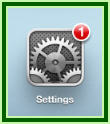
If you see I notification badge next to the settings icon.  It is time to update. 

How do I update my iPad?

Click Settings>General>Software Update.


Then click Install.


Finally click Install now.


Although optional, it is always a good idea to backup/sync your iPad before a software update.


What’s this?


If you see a badge above your App Store icon, it indicates that one ore more of your apps need an update.  These updates fix bugs or errors you may be experiencing when using the app.  Click App Store>Updates>Update All

Wednesday, March 6, 2013

Educreations

Educreations is an easy to use, free app that records your voice and the iPad screen while you are explaining a concept.  Teachers can use it to teach concepts to children who need repeated instruction or leave lesson instructions for substitutes.  Students can use the app to demonstrate understanding of a math concept, vocabulary word or science experiment.


Monday, March 4, 2013

Find My iPhone/iPad


Worried about losing your iPad, iPhone or iPod? Apple has a free app that can locate your missing device. The app locates your device and provides you a street address! (It will not tell you which classroom you left it in. However, you can have piece of mind knowing it is somewhere in the school!)

If you device has been misplaced, and you have the app activated, you can log in from any computer  at https://www.icloud.com  

For help setting up Find My iPhone please visit http://www.apple.com/support/icloud/find-my-device/