Showing posts with label Google. Show all posts

Wednesday, September 20, 2017

Read&Write For Google Part 4 - Word Prediction and Translations


Word Prediction

Read&Write can help students who have difficulty typing or spelling when working on a Google Doc.  It works similar to your phone's text suggestion feature when your are texting.

 In a Google doc or slide, click the Prediction button.

As you type, a box will appear with word suggestions. Hover over a suggested word and it will be read aloud.  Click on a word and it will be placed in your writing.


In your Options menu you can customize the Prediction Tool.


Translator


The Read&Write toolbar also has a word translator button.  Click it on and highlight a word to see that word translated to the language you have chosen in your Options.


Coming Soon...
Part 5 - The Rest of the Tools!

Tuesday, September 12, 2017

Read&Write For Google Part 3 - Highlighter Tools


Read&Write has a 4 different color highlighters and a clear highlighter button in the tool bar.   The different colors can be used to classify and categorize words on a website, Google Doc, Google slide or a PDF. 

The Collect highlights button will open a new Google Doc and automatically sort your highlights by color and includes a link to the original site!

Super cool!  You can highlight and sort parts of speech, story elements, topic sentences, evidence from the text and so much more!!!


Coming Soon...
Part 4 - Word Prediction and Translations
Part 5 - The Rest of the Tools!

Tuesday, September 5, 2017

Read&Write for Google Part 1 - Read Aloud Tools


Read&Write for Google is an extremely powerful Chrome extension.  One of its many abilities is the the text-speech feature that can read aloud websites, google docs, google slides and PDFs.

The read aloud tools are super simple to use.  
  1. Open any website, doc, slide or PDF.
  2. Click the Read&Write Extension  to open the Read&Write tool bar
    (If you do not have the extension, search for it at Chrome Web Store and add it to Chrome.
  3. Highlight the word/sentence/paragraph where you want to start reading.
    (Tip: To highlight one word, double click the word.  To highlight a whole paragraph, triple click any word in the paragraph.)
  4. Click the play button.


Bt default, Read&Write is set for continuous reading.  To stop you must click Pause or Stop. However, some students may benefit from having only one sentence or paragraph read at a time. 


To turn off continuous reading, go to the Read&Write Options by clicking the arrow on the right of the tool bar.

Under Speech, uncheck the continuous reading box.


You can also change the readers voice and reading speed.


To pause a read aloud, click pause.


To clear a selection and start over, click stop.


When you click the Hover Speech Button,

Read&Write will read aloud most sentences, captions or titles you hover over.  There is a fraction of a second delay, so be patient!  To turn off Hover Speech, click Stop.


Coming Soon...
Part 2 - Vocabulary Tools
Part 3 - Highlighter Tools
Part 4 - Word Prediction and Translations
Part 5 - Audio Tools


Tuesday, December 6, 2016

Google's Santa Tracker/Advent Calendar

Google's Santa tracker has more to offer than meets the eye!  Like an advent calendar, new activities "open" up every day to help you count down to Christmas.  So far, activities include learning about holiday traditions, creating a snowflake, Santa selfies and my favorite, coding activities for k-3 students!

Thanks Sheila Creaser for the heads up on this site!


Wednesday, November 9, 2016

Staff Meeting 11/9 Gmail tips, Google Keep & New Laptops


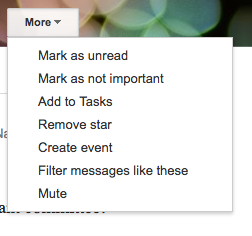
Create a calendar event from an email:
  1. Open the message. 
  2. Click the More drop-down menu. 
  3. Select Create event from the menu that has shown. 
  4. Edit and enter details as needed manually. 
  5. Click SAVE. 
 Create a Task from an email:
  1. Open the message. 
  2. Click the More drop-down menu. 
  3. Select Add to Tasks from the menu that has shown. 


Google Keep


New Lenovo Yoga Laptops


Staff Meeting 11/9 Gmail tips, Google Keep & New Laptops


Create a calendar event from an email:
  1. Open the message. 
  2. Click the More drop-down menu. 
  3. Select Create event from the menu that has shown. 
  4. Edit and enter details as needed manually. 
  5. Click SAVE. 
 Create a Task from an email:
  1. Open the message. 
  2. Click the More drop-down menu. 
  3. Select Add to Tasks from the menu that has shown. 


Google Keep


New Lenovo Yoga Laptops