Wednesday, January 11, 2017

Drive Slides (Faculty Meeting 1/11/17)

This extension creates and instant Google slide show from pictures with in any folder on your Google Drive! Great way to organize, present and even print your pictures from Drive! 

Get it at the Chrome Web Store!!

"DriveSlides allows you to create a Google Slides presentation out of images in a Google Drive folder. Simply open a folder in Google Drive that contains JPG, PNG or GIF images. Press the DriveSlides Chrome extension icon to open the Google Slides presentation with your images automatically added. The Slides are created in your Google Drive, within the same folder." - Description from Web Store


Tuesday, December 6, 2016

Google's Santa Tracker/Advent Calendar

Google's Santa tracker has more to offer than meets the eye!  Like an advent calendar, new activities "open" up every day to help you count down to Christmas.  So far, activities include learning about holiday traditions, creating a snowflake, Santa selfies and my favorite, coding activities for k-3 students!

Thanks Sheila Creaser for the heads up on this site!


Monday, November 28, 2016

Show What You Know

Looking for some creative ways to publish student work?  Wesley Fryer has compiled resources that can help you understand just what programs and apps students can use to show what they know!!!

Show it With Media

Personally, I like the 5 Photo Story idea... It can be a fun, quick way to retell a story, explain how to do something or review for a test.


http://showwithmedia.com/

Thursday, November 10, 2016

Wednesday, November 9, 2016

Staff Meeting 11/9 Gmail tips, Google Keep & New Laptops


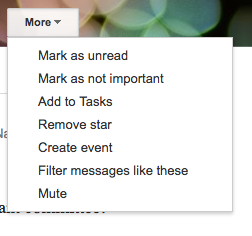
Create a calendar event from an email:
  1. Open the message. 
  2. Click the More drop-down menu. 
  3. Select Create event from the menu that has shown. 
  4. Edit and enter details as needed manually. 
  5. Click SAVE. 
 Create a Task from an email:
  1. Open the message. 
  2. Click the More drop-down menu. 
  3. Select Add to Tasks from the menu that has shown. 


Google Keep


New Lenovo Yoga Laptops


Staff Meeting 11/9 Gmail tips, Google Keep & New Laptops


Create a calendar event from an email:
  1. Open the message. 
  2. Click the More drop-down menu. 
  3. Select Create event from the menu that has shown. 
  4. Edit and enter details as needed manually. 
  5. Click SAVE. 
 Create a Task from an email:
  1. Open the message. 
  2. Click the More drop-down menu. 
  3. Select Add to Tasks from the menu that has shown. 


Google Keep


New Lenovo Yoga Laptops


Tuesday, October 11, 2016