Wednesday, September 11, 2013

September Tips

Here are 3 quick tips about Google calendars.


1.  Calendar Shortcuts.
Click C to create a new event!
Find more shortcuts at https://support.google.com/calendar/answer/37034?hl=en

2.. Find other people's calendars or  other calendars.


3.  Add an event to your calendar from your email.


Wednesday, September 4, 2013

Gmail Contact Groups

 Here are two of the ways to create and manage Contact Groups in Gmail!

Here are two ways to send an email to a group.

To handpick who in a group you want to email…

  1. 1.    Go To Your Contacts
  2. 2.    Click the group you want to send an email to.
  3. 3.    Check the names of the people you want, or select all.
  4. Click the Email button.


OR

To email the whole group… 
  1. 1.    Go to your inbox.
  2. 2.    Click Compose
  3. 3.    Start typing the name of a group you created.
  4. Choose that Group.


For more info Gmail on contacts, please visit https://support.google.com/mail/topic/1669028?hl=en&ref_topic=1669024

Friday, August 30, 2013

Organizing Your Gmail

Is your Gmail inbox overwhelming you a bit? Organize your email by creating Labels!

Gmail doesn't use folders, it uses Labels.  Labels are different from folders in that 1 email can have multiple labels.  If you use folders, 1 email could not be physically (or digitally) in two folders at the same time.

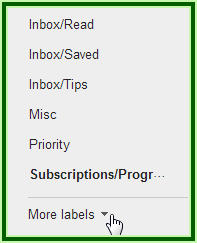
Your labels are on the left of your screen.  Click More Labels and scroll down to find the Create and Manage features.


Use the drop down arrow next to a Label to customize a Label's color.


Physically click and drag emails from your inbox into a label or use the Move To  button to  mark emails under multiple labels.


Archiving emails removes it from your inbox, but keeps it in Gmail with out putting it under a label.  You can see archived email by clicking All Mail.

Adding Personalized Introductions to YouTube Videos

Check out what Karrie Zanetti did!


Adding a personalized introduction to a YouTube video is a great idea when...

  • you have a substitute
  • you have kids working independently in centers
  • you want to assign watching a YouTube video as homework
Here's how it works. (Use a computer with a webcam.)
  1. Go to YouTube and sign in with your Google username/password
  2. Search for and click on the video you want to use
  3. Click Add To
  4. Choose/Create a paylist
  5. Go to your account/Video Manager
  6. Choose the Playlist you added the video to
  7. Click edit
  8. Hover over the video you want to add an intro to
  9. Click +introduction
  10. Follow the on-screen direction to record your intro.

Thanks Karrie!

Great Gmail and Google Drive Tutorials!

Thursday, August 29, 2013

3 Quick Gmail Tips

Sending and receiving email in Gmail is a bit different than Outlook.  Here are 3 quick tips to make your Gmail experience more enjoyable.

1.  Formatting email
Click the underlined A at the bottom of your email screen to find formatting options.

Click the plus sign to add attachments, hyperlinks, anything in your Google Drive, etc.


2.  Display missing pictures
Gmail prevents pictures in emails from automatically showing up in order to reduce the risk of viruses and help your email load quickly.  If you want to see pictures, click "Display images below" at the top of the email you are reading.


3.  Display hidden content
Gmail condenses your view for emails you reply to or forward.  Sometimes you can't see the signature you created and you might want to double check it is there.  Just click this button at the bottom of your open email. 


Wednesday, August 28, 2013

Gmail - Star Vs. Important


Gmail has two built in ways to flag your emails, Stars and Important Tags.  Here's the difference.


Want a more detailed explanation of your Gmail Inbox?  Watch this video, it's worth the 12 minutes!