Tuesday, September 12, 2017

Read&Write For Google Part 3 - Highlighter Tools


Read&Write has a 4 different color highlighters and a clear highlighter button in the tool bar.   The different colors can be used to classify and categorize words on a website, Google Doc, Google slide or a PDF. 

The Collect highlights button will open a new Google Doc and automatically sort your highlights by color and includes a link to the original site!

Super cool!  You can highlight and sort parts of speech, story elements, topic sentences, evidence from the text and so much more!!!


Coming Soon...
Part 4 - Word Prediction and Translations
Part 5 - The Rest of the Tools!

Monday, September 11, 2017

Noisli - Improve Focus with Customizable Background Sounds

Would some of your students benefit from background noise that improves productivity or helps with relaxation?

Check out https://www.noisli.com/ a simple and quick way to reduce distractions while you work.


When you find a combination of sounds that suits your purposes, you can save it as a Combo.  Combos can be played back from the website or the Chrome Extension


Friday, September 8, 2017

Read&Write for Google Part 2 - Vocabulary Tools


The vocabulary tools work on websites, google docs, google slides and PDFs. 


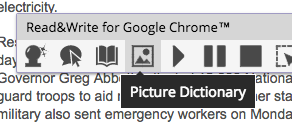
Highlight a word and click the dictionary or picture dictionary button to display a pop-up window with definitions or pictures!


Use the toolbars colorful highlighters to highlight multiple words on a page and click the Vocabulary button to open a google doc with a table containing the words you highlighted, definitions and pictures!


Coming Soon! Part 3 - Highlighter Tools
Part 4 - Word Prediction and Translations
Part 5 - Audio Tools

Wednesday, September 6, 2017

Home Button in Chrome & ClassLink

​To set your home button in Chrome...

Go to your Chr​ome settings
Inline image 1

Enable the show home button.
Inline image 2

Type the website you want to open whenever you hit the home button.

Inline image 3

Hint:  If you want it ti be the ClassLink page for RTSD26 staff, type http://launchpad.classlink.com/rivertrails

If you want to be able to use the Sign in with Google button on ClassLink, you must
1.  Log into ClassLink
2.  Go to the profile dropdown arrow on the top right
3.  Click My Profile
4.  Click Sign In Options
5.  Connect to Google.


Tuesday, September 5, 2017

Read&Write for Google Part 1 - Read Aloud Tools


Read&Write for Google is an extremely powerful Chrome extension.  One of its many abilities is the the text-speech feature that can read aloud websites, google docs, google slides and PDFs.

The read aloud tools are super simple to use.  
  1. Open any website, doc, slide or PDF.
  2. Click the Read&Write Extension  to open the Read&Write tool bar
    (If you do not have the extension, search for it at Chrome Web Store and add it to Chrome.
  3. Highlight the word/sentence/paragraph where you want to start reading.
    (Tip: To highlight one word, double click the word.  To highlight a whole paragraph, triple click any word in the paragraph.)
  4. Click the play button.


Bt default, Read&Write is set for continuous reading.  To stop you must click Pause or Stop. However, some students may benefit from having only one sentence or paragraph read at a time. 


To turn off continuous reading, go to the Read&Write Options by clicking the arrow on the right of the tool bar.

Under Speech, uncheck the continuous reading box.


You can also change the readers voice and reading speed.


To pause a read aloud, click pause.


To clear a selection and start over, click stop.


When you click the Hover Speech Button,

Read&Write will read aloud most sentences, captions or titles you hover over.  There is a fraction of a second delay, so be patient!  To turn off Hover Speech, click Stop.


Coming Soon...
Part 2 - Vocabulary Tools
Part 3 - Highlighter Tools
Part 4 - Word Prediction and Translations
Part 5 - Audio Tools


Friday, September 1, 2017

Gmail Signature


Add a signature to your Gmail

  1. In Gmail, click Settings settings and select Settings.
  2. In the General tab, scroll down to Signature and click the button next to the text box.
  3. Type your signature, and use the format toolbar to add font styles, colors, images, links, and more.
  4. Click Save changes.

Want to get your signature little fancier?  Create a signature in Google Drawings.  Download it as a .png.  Then insert that image in the signature box in your gmail settings (see above).


There are is also a chrome extension I wrote about a while ago that help you create signatures:

Monday, April 3, 2017

Science Friday

The Science Friday website has articles, videos and podcasts about relevant and interesting science topics!


Students can use the EXPLORE section of the website to read, watch or listen to cool science stories.


The EDUCATE section offers free STEM activities, lessons, and resources!