Friday, August 22, 2014

SharpSchool Document Container

A Document Container portlet can hold all your links, files and folders!


To add a document container portlet you must first Switch to design Mode


After switching, you will see this portlet toolbar towards the top of your screen.


Simply click and drag the icon of a portlet to the spot you want it on your page! Watch Video

Once you have inserted the portlet you can fill it up!
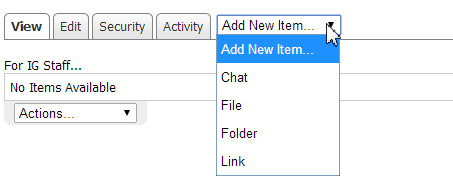
Add New Item… File
Click Choose File and upload something from your computer!
Add New Item… Folder
Create a folder to help organize your container!

Add New Item… Link
Add a link to a website, video or google doc!


SharpSchool Container Portlet - Clip Art & Images

Here are two ways to add images to the content portlet on your web site.  (A content portlet is a web part that allows you to type/format text and insert images.  When editing the portlet, it gives you most of the same options as when you create a word document!)  You ALREADY have a content portlet on your site… it is the part where you can type your name!
To edit ANY portlet, you must first Switch to Design Mode and then click the portlet's edit button.


Option 1 - ClipArt
SharpSchool offers a clipart library. Just click where you want the image, click the clipart button and search their library!


Option 2 - Uploading and inserting your own picture!

  1. Click the Image Manager icon
  2. Double-click the folder with your name on it (No folder?  Contact Sondra!)
  3. Click  
  4. Click
  5. Choose the image you want to upload from your computer and click the Open button
  6. Click the
  7. The image you chose will be uploaded into your folder
  8. Select the image you want to insert by clicking on the file name
  9. Click the Properties tab
  10. Enter a 1-2 word description of your picture in the ALT Text field.
  11. Lock the ratio aspect by clicking closed the little lock
  12. Enter the Width at 300 (you can click and drag to the size you want later)
  13. Click the Insert button
  14. Resize your image as needed

Friday, March 14, 2014

Cyberbullying

Cyberbullying has been front page news this month with controversy over a social media app, Yik-Yak.  (Click to read Chicago Tribune Article)  Cyberbullying is causing someone harm using technologies such as chatting, texting, commenting and social networking sites or apps.  Cyberbullying can include spreading rumors, sending a hostile text, photoshopping someone’s picture or even stealing someone’s password and hacking into their account.  


It’s never too soon to start a conversation with your child about cyberbullying. Starting a dialogue with the following questions could help facilitate the discussion.   


  • Have you ever received a message from someone who was being mean to you?
  • Have you ever sent a mean message because you were upset?
  • Who would you talk to if you were being cyberbullied?


It is also important to teach your children these strategies to help them avoid being cyberbullied.
  • Never respond to rude emails, comments or messages.
  • Block users you know to be cyberbullies and turn of comments on sites like YouTube.
  • If the cyberbullying is reoccuring, make sure you save evidence.  Don’t delete emails or texts and take screenshots of websites where the harassment is occurring.
  • Contact website creators and alert them to any cyberbullying taking place on their site.  Ask them to remove any harmful content.
  • Change your phone number, create a new email account or delete and create a  new profile on apps and websites.  Then only share your new information with trustworthy people.


For more information, please visit the following sites.
18 Tips from Parents.com

Friday, February 21, 2014

Internet Safety Reminder #2 - Log Out

Even though they are considered digital natives, our students need some guidance navigating cyberspace. Internet safety should be addressed frequently and authentically.  So next time your students are online, remind them that when using a computer that is shared with other people, they should always log out of any websites, email accounts or browsers they logged into.  If they don't, other people will be able to access or modify their personal information and could use their accounts in inappropriate ways.  Ultimately they are responsible for any activity on their account so log off!

Wednesday, February 12, 2014

Use And Set Browser Tabs

Make your internet surfing more productive and efficient by customizing your browsers home page and tabs.

Staff Meeting Tips 2-12

Google Calendar!

Tips on creating events....
You can only create events on your calendar or a claendar that has been shared with you.  Make sure you are creating events on the right calendar!


You can invite people or request room usage.  After sending an invite the event will appear on your guests' calendar and an email will be sent (maybe directed to update tab).

Add your Task List to Your Calendar...
If you have been using tasks in GMail, You can easily add it to your calendar by Selecting the Tasks box under your calendar name.


Get a daily agenda or modify your notifications.
Go to Settings and choose the calendar tab.
Click Reminders and Notifications.


Previous Posts/Instructions about Google Calendar...
Making Sure you are in the correct time zone
Keyboard Shortcuts
Adding an appointment from an email
Creating an event
Checking out Apple devices for classroom use