Wednesday, March 13, 2013

Windows Button Shortcuts


Most PC keyboards have a special “Windows” button that looks something like this...


When some programs like KidPix or Kidspiration run, they take up your whole screen. There may be
times while using these programs that you want to get back to your desktop without quitting the program and losing your work. Clicking the "Windows" button activates your bottom task bar. From there you can view other files or programs on your computer.

Here are some other shortcuts:

+ Space Bar = peek at your desktop
+ D = minimize all windows and show the Desktop
= M = minimize all windows
+ 1 (or 2,3 etc) = open the task bar program of the corresponding order
+ Down Arrow = minimize current window
+Up Arrow = maximize the current window
+Plus Sign or Minus Sign = zoom in, zoom out

Friday, March 8, 2013

Quadblogging

Looking for a authentic audience for your students' blogs?  QuadBlogging sets you up with 3 other classrooms around the world so your students can share their blogs in a safe environment!  Here is a video that explains more... http://youtu.be/w8J8Jrr_eq4 

Thursday, March 7, 2013

Google Drive, Google Docs, Google Apps

Whether or not you are googly-eyed over Google or bewildered by it, it is important to know the difference between Google's Drive, Docs and Apps

 - Storage in the cloud!  Upload, save and share files, pictures or video and access them from any device that connects to the internet.  This home/storage for Google Apps, is free with your Google Account.  Access through any web browser or through a smartphone or tablet App. (It's like your own personal X Drive, accessible anywhere, sponsored by Google.)

Create and share documents, presentations, spreadsheets, drawings and forms.  Access your Docs from any device with an internet connection.  Docs are automatically saved to your Google Drive. 


 Applications to make your life more enjoyable.  Apps include, Gmail, Picassa (picture editing), Google Maps, Google Earth, Chrome.  Google Apps are browser based, but some can be downloaded directly to your computer, tablet of smartphone.


Wednesday, March 6, 2013

Educreations

Educreations is an easy to use, free app that records your voice and the iPad screen while you are explaining a concept.  Teachers can use it to teach concepts to children who need repeated instruction or leave lesson instructions for substitutes.  Students can use the app to demonstrate understanding of a math concept, vocabulary word or science experiment.


Monday, March 4, 2013

Find My iPhone/iPad


Worried about losing your iPad, iPhone or iPod? Apple has a free app that can locate your missing device. The app locates your device and provides you a street address! (It will not tell you which classroom you left it in. However, you can have piece of mind knowing it is somewhere in the school!)

If you device has been misplaced, and you have the app activated, you can log in from any computer  at https://www.icloud.com  

For help setting up Find My iPhone please visit http://www.apple.com/support/icloud/find-my-device/

Monday, March 12, 2012

Tech Tip #2 - Make the Info Pop Out

Have you ever been searching a website for information and can't find what you are looking for quick enough?

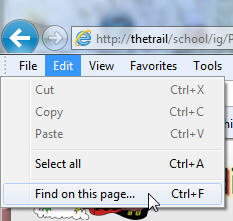
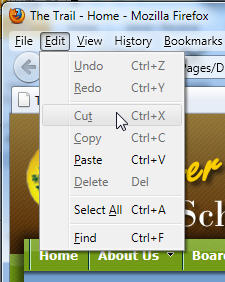
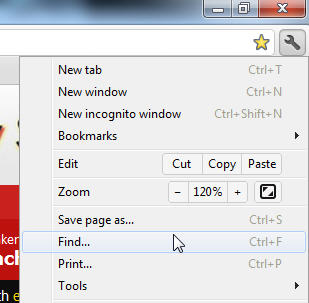
Some websites contain too much text or information you may not need. And if you are in a hurry, wouldn't it be nice for the information you're looking for to pop right out!  Well, there is a way to FIND  a particular word and quickly!

Depending on the browser you use, the find feature is a little different... but whichever one you use you'll save time!

Internet Explorer

Mozilla Firefox

Google Chrome

Safari


Monday, February 27, 2012

Tech Tip #1 - Microphones and Speakers


Now that we are using more interactive websites and multimedia software, it is important to know how to check to make sure your speakers and microphones are working correctly.   Sometimes children have a hard time speaking loud enough for microphones to pick up their voices nicely.  Adjusting sound settings can help even the quietest child be heard loud and clear.

In Windows 7, the taskbar on the bottom of your screen has a little speaker icon.  


Left clicking the icon, allows you to adjust the volume of the speakers.


Right clicking the icon, allows you to test, set the default and adjust the levels on  speakers (playback) or microphones (recordings). Just choose the device you would like to adjust, click properties and set the levels to the appropriate volume.